
Instructions for registering and submitting a call for tenders

1. Receiving an invitation message
You will receive an invitation message from protemos.com. Above is a screenshot of an example
about the message.
Open the email and click on the link in the message.
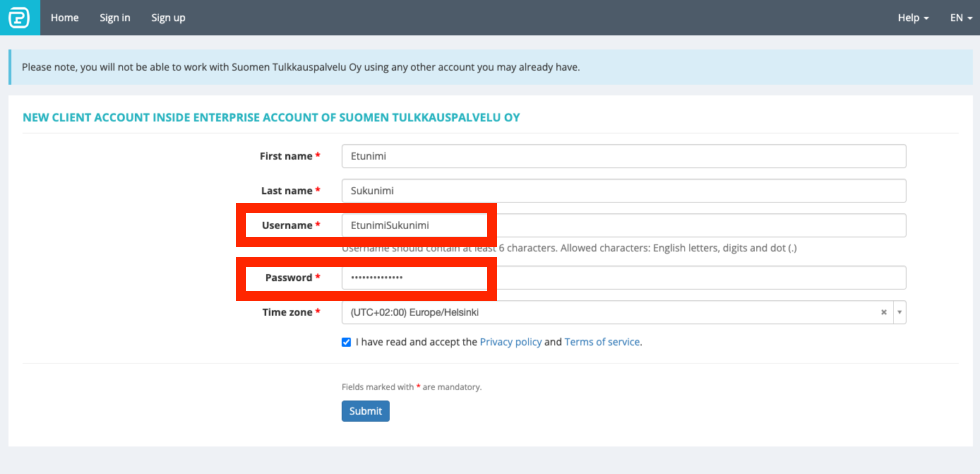
2. Complete the registration by entering your username (Username) and password (Password).
- Username and password required to log in to the portal - be sure to save them for yourself.

3. Send a request for a quote by going to "Quotes" and then "New quote request".
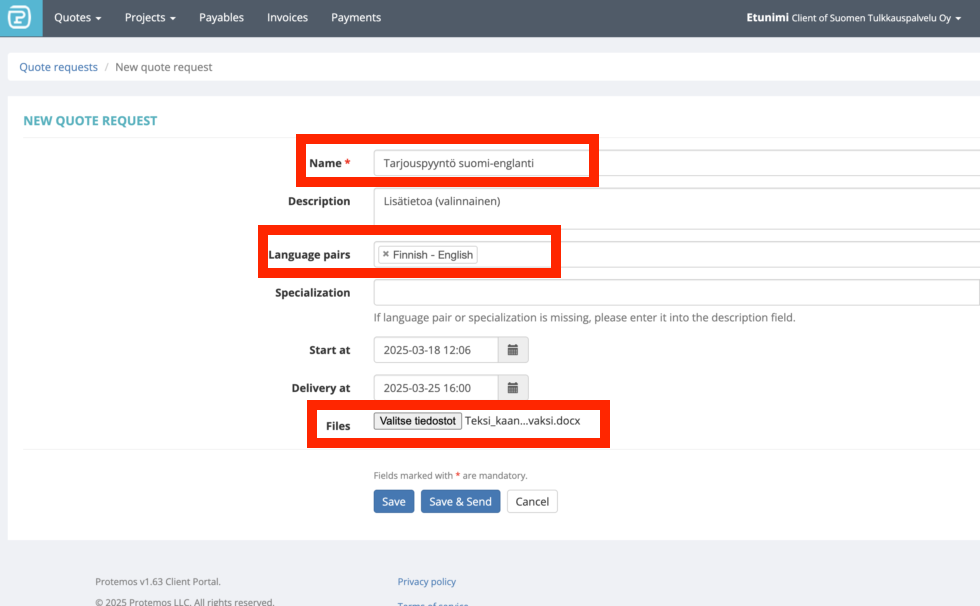
4. Enter the necessary information and add the files to be translated.
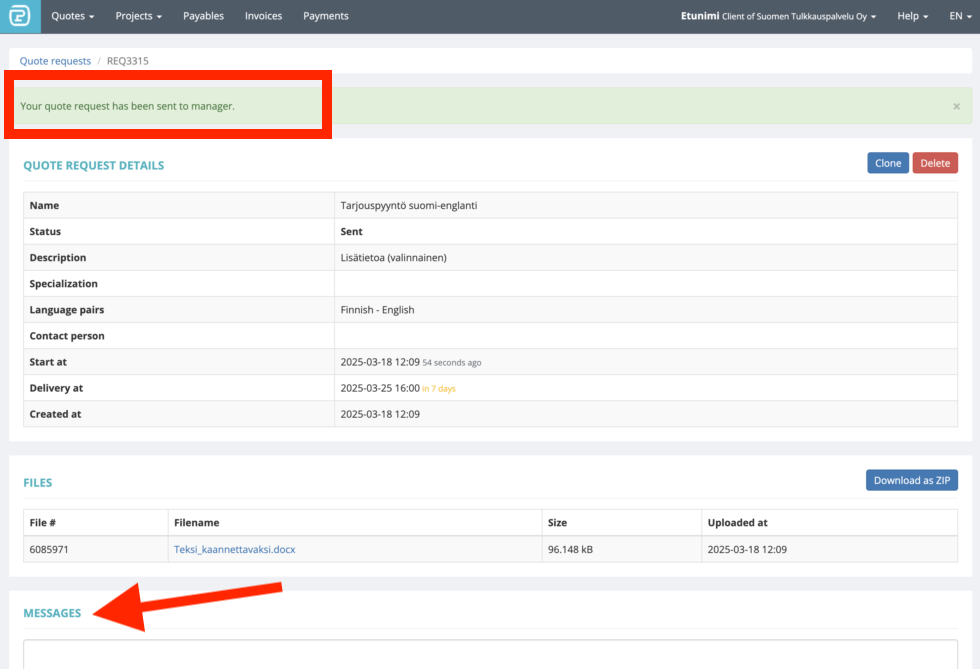
5. After sending the call for tenders you will see a confirmation screen.
- You can send messages to the customer service team using the message box at the bottom of the screen. "Messages"-field.
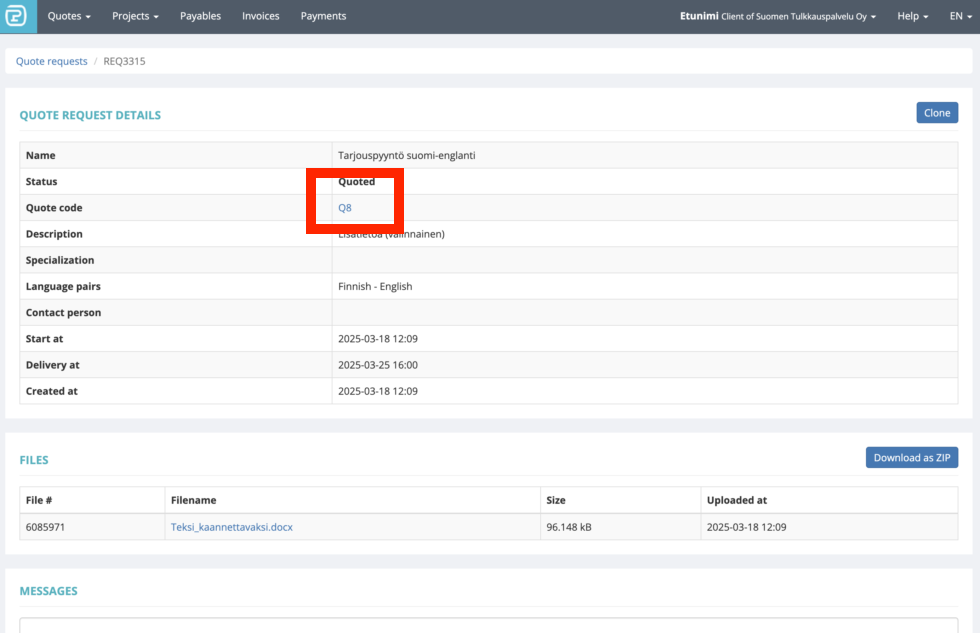
6. You will receive an email notification when the offer has been sent to you.
- You can open the offer from the link in the email or "Quote code"-from the row by selecting an offer (e.g. Q8).
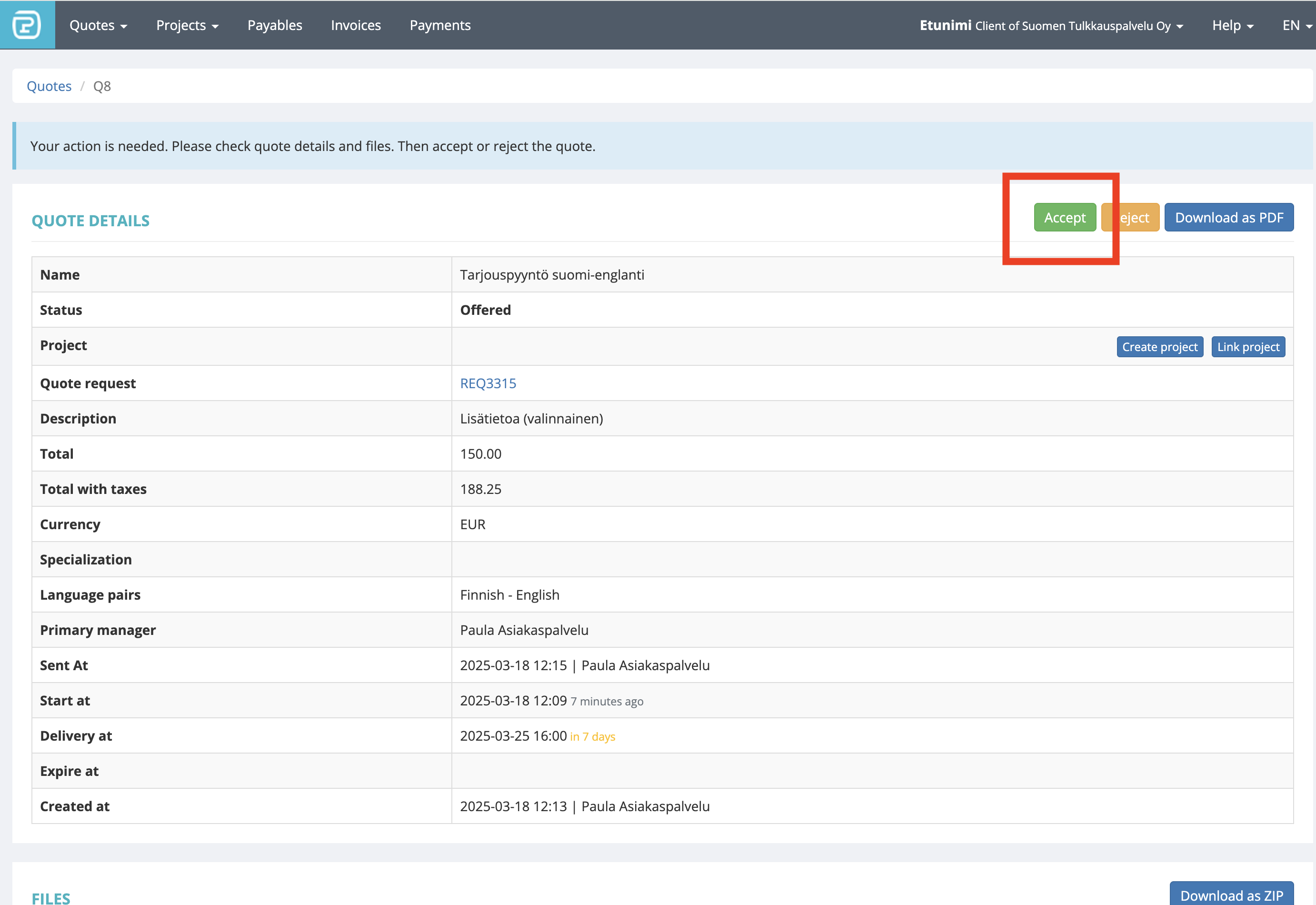
7. Accept the offer by clicking on the green "Accept"-button.
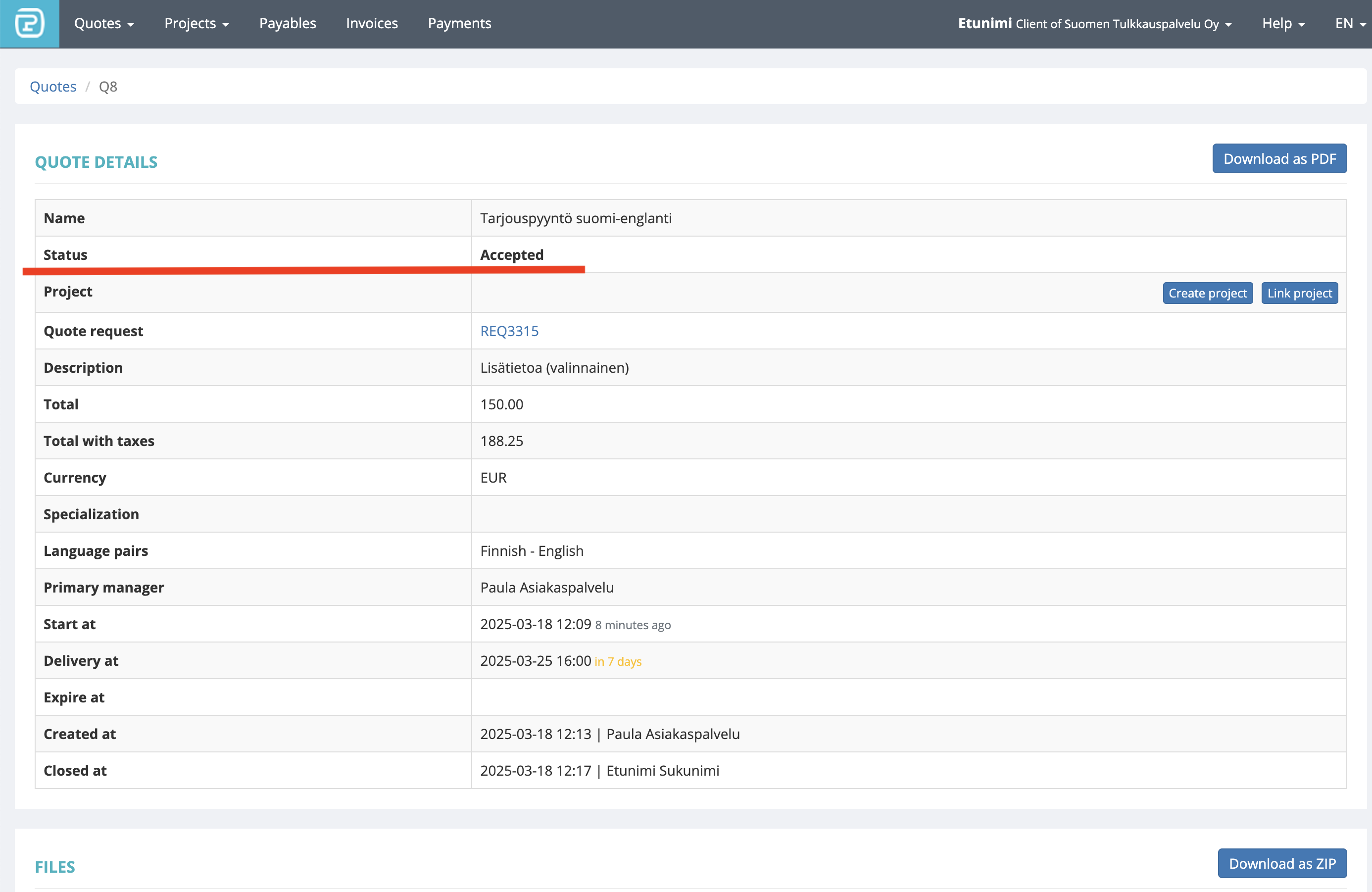
8. You will see on the "Status" bar that you have accepted the offer.
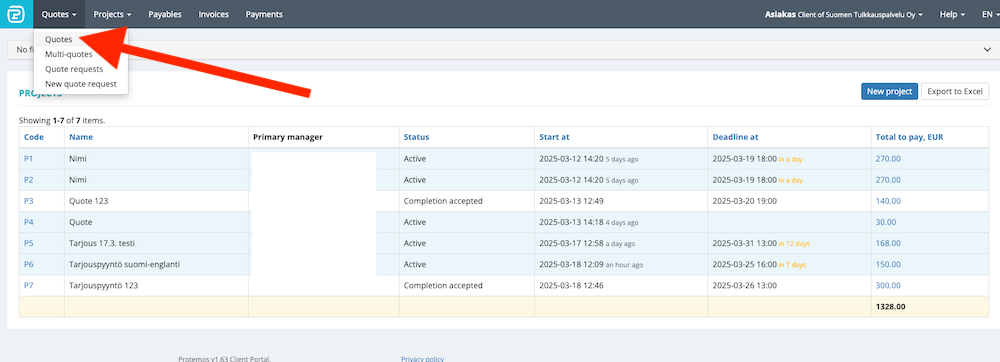
9. In the "Quotes" list see all the requests for quotes you have sent and their status (status).
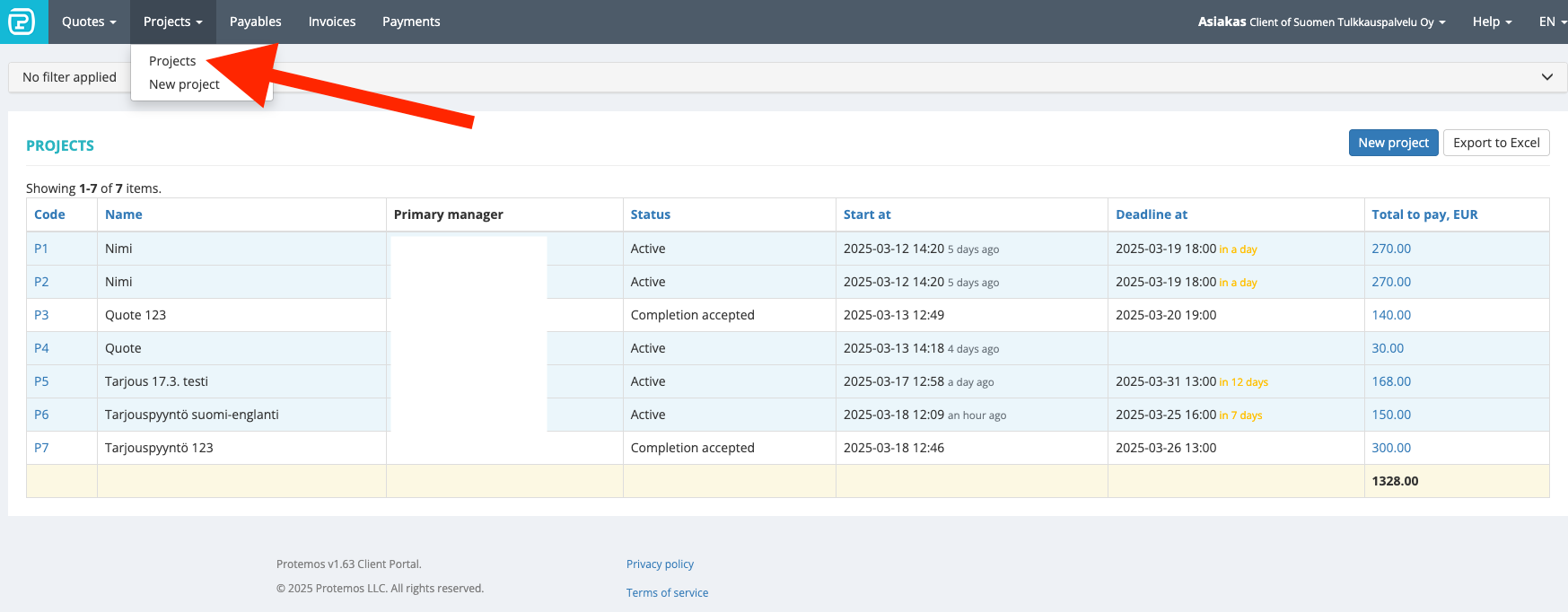
10. in "Projects" view you can follow the status of bids already accepted.
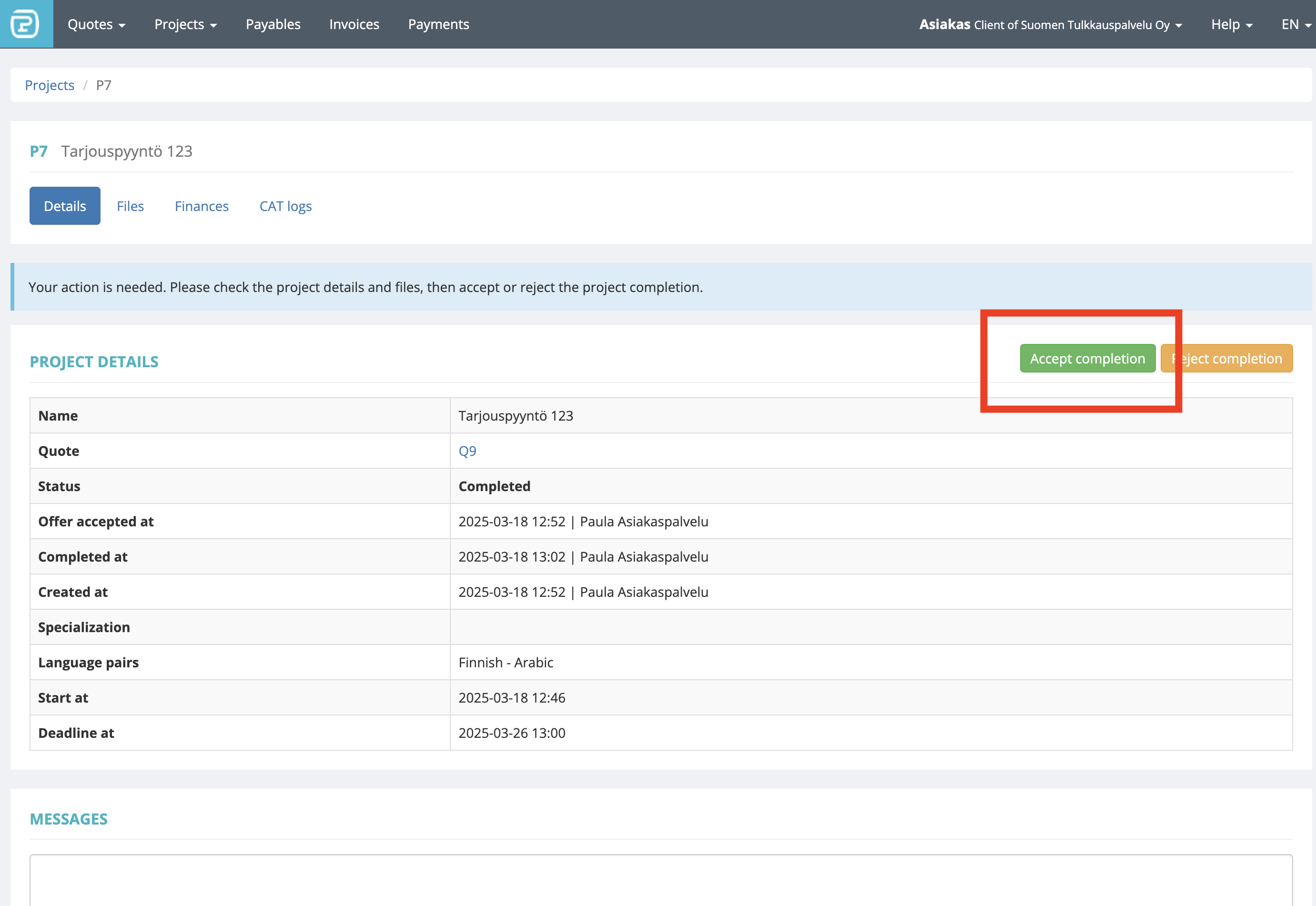
11. When the translation is completed, you will receive an email notification and you can accept the translation by clicking on "Accept completion" -button.